HR
Organizational Chart
The Organizational Chart section allows you to structure and visualize the employee hierarchy within the organization.
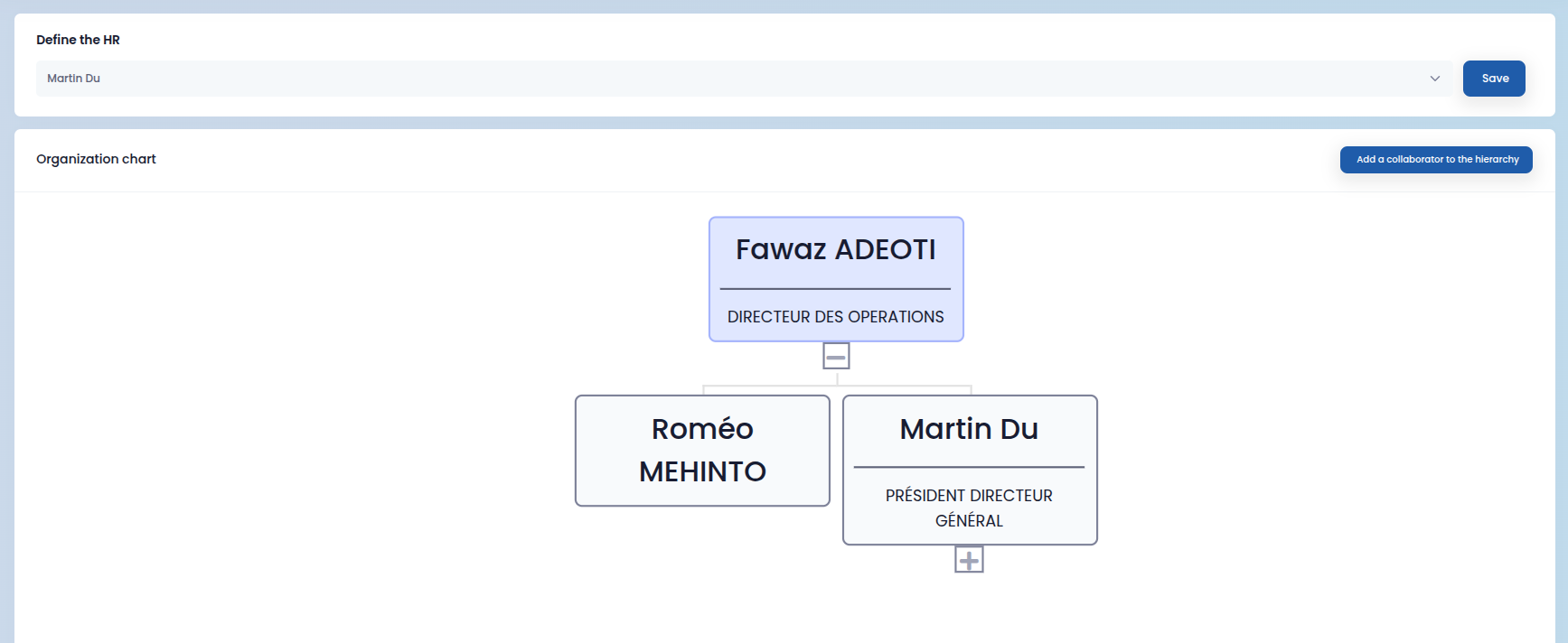
You have the option to:
-
define the HR Manager via the dedicated field, then save using the "Save" button,
-
add employees to the hierarchy by clicking "Add an employee to the hierarchy."
When adding, a form appears allowing you to:
-
enter the N+1 Manager,
-
associate N+1 employees,
-
add multiple departments if necessary using the "Add" button.
Once the information is completed, click "Save" to validate.
Employee Records
The Employee Records section is dedicated to the complete management of personnel files.
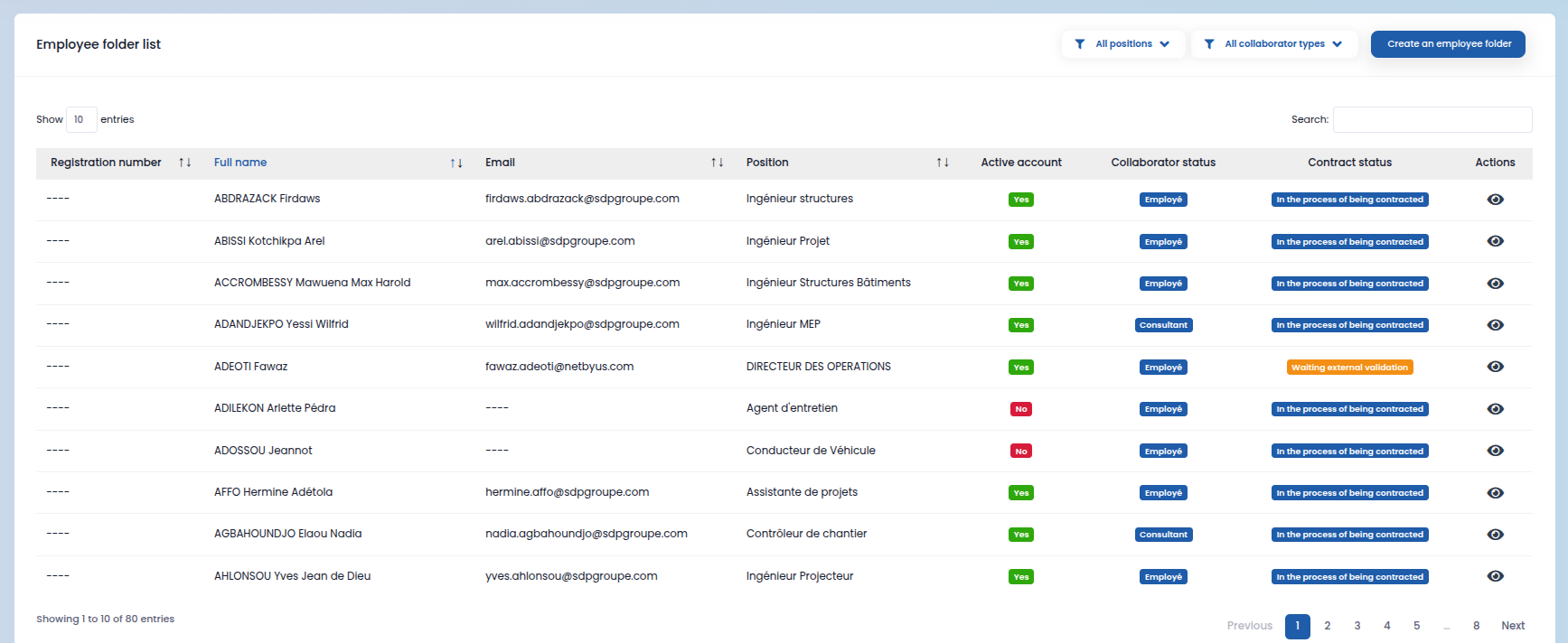
To create an employee record:
-
click on "Create an employee folder,"
-
fill in the form,
-
then save.
After creation, you can access the record details via the "View" icon available in the actions.
Each employee record includes:
-
personal information,
-
HR information,
-
banking information,
-
administrative documents,
-
contracts,
-
invoices,
-
evaluations.
Service Contracts
The Service Contracts section allows for the management of contracts related to service providers.
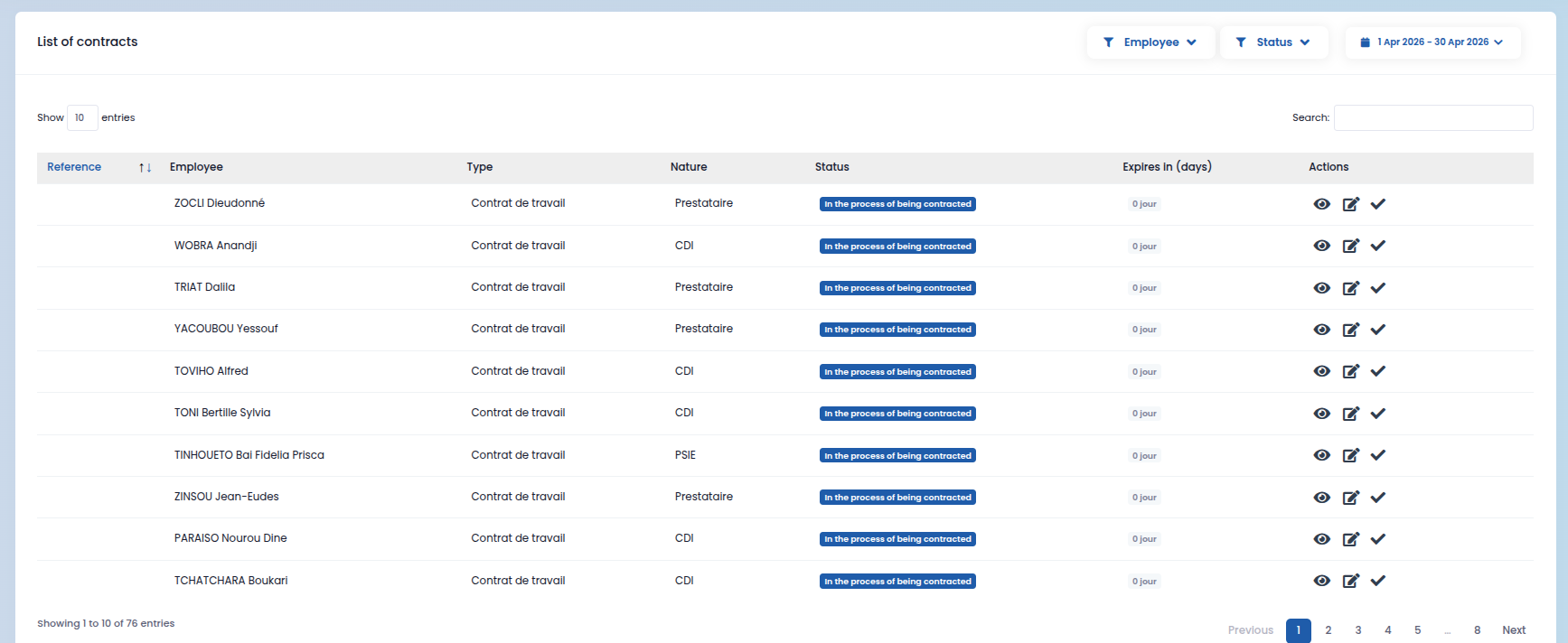
You can:
-
create new contracts,
-
track contract status using the contract tracking table.
The action icons allow you to:
-
view contract details,
-
send the contract to an external party.
Leaves of Absence
The Absences section centralizes employee leave requests.
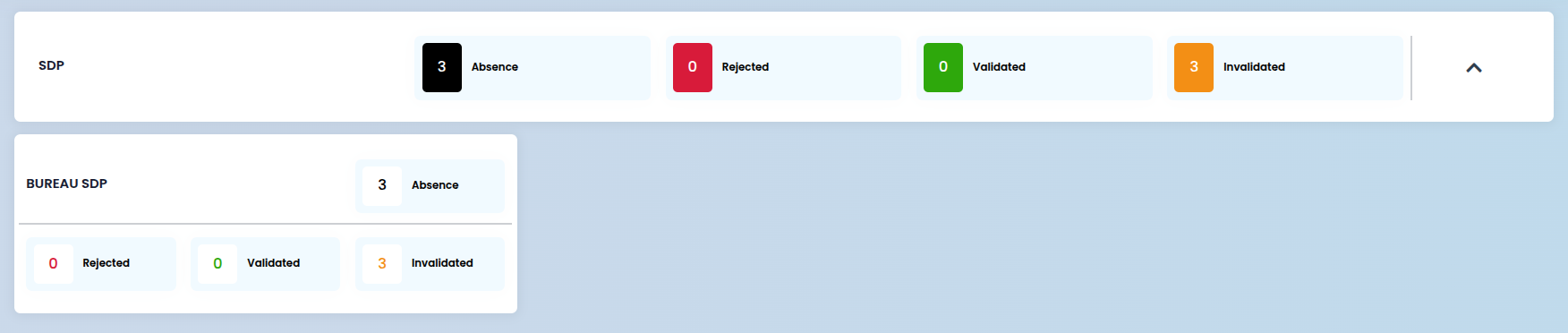
It allows you to view:
-
validated requests,
-
rejected requests,
-
pending (not yet validated) requests.
Payslips
The Payslips section allows for the management of employee compensation.
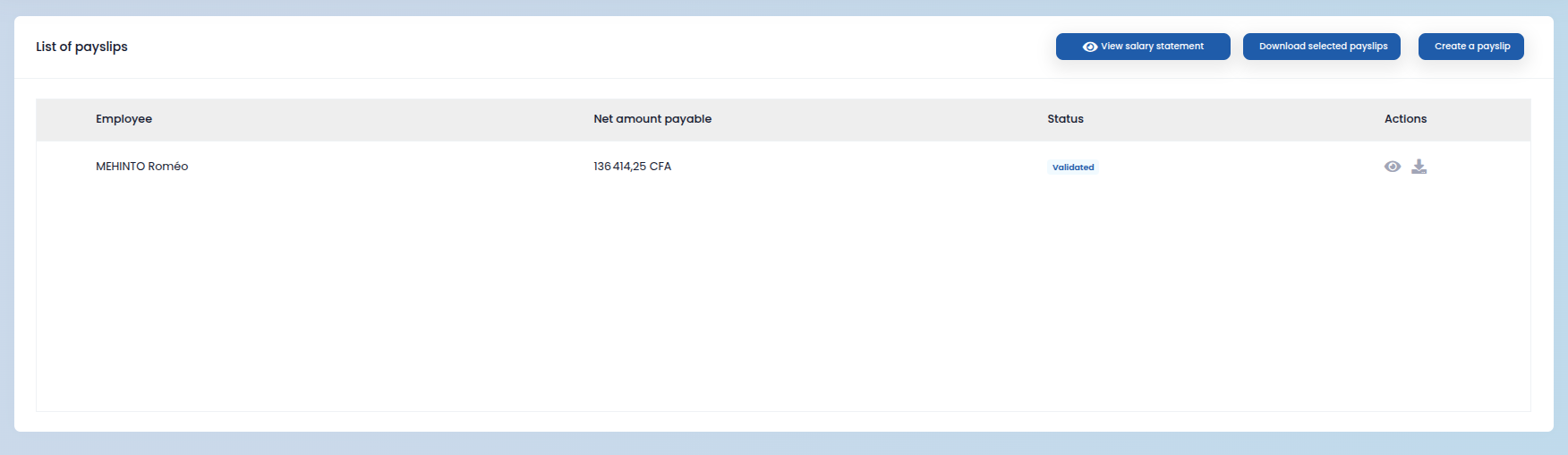
To create a payslip:
-
click on "Create a payslip,"
-
fill in the form that appears.
The form is structured into three (03) parts:
Income
This section allows you to enter:
-
base salary,
-
allowances (if applicable),
-
bonuses (if applicable),
-
payment type.
Social Contributions
This section allows you to add:
-
pensions,
-
taxes,
-
associated payment type.
Employer Contributions
This section groups the costs borne by the employer. After entering the details, save the payslip.
Payroll Status
Using the "View payroll status" button, you can consult the status of salaries with a monthly filter.
In this section, you also have the Attendance rate request feature, which allows you to:
-
create a new request via the "New request" button,
-
fill in the corresponding form.
Internal Memos
The Internal Memos section allows for the dissemination of internal communications.

To create a memo:
-
click on "New memo,"
-
complete the form,
-
then click "Save."
Business Cases
The Business Cases section allows for the management of internal business matters.

To create a new case:
-
click on "New business",
-
fill in the form,
-
then save.
Recruitment
The Recruitment section is dedicated to managing recruitment processes.
It allows you to:
-
publish new job offers,
-
view the applications page,
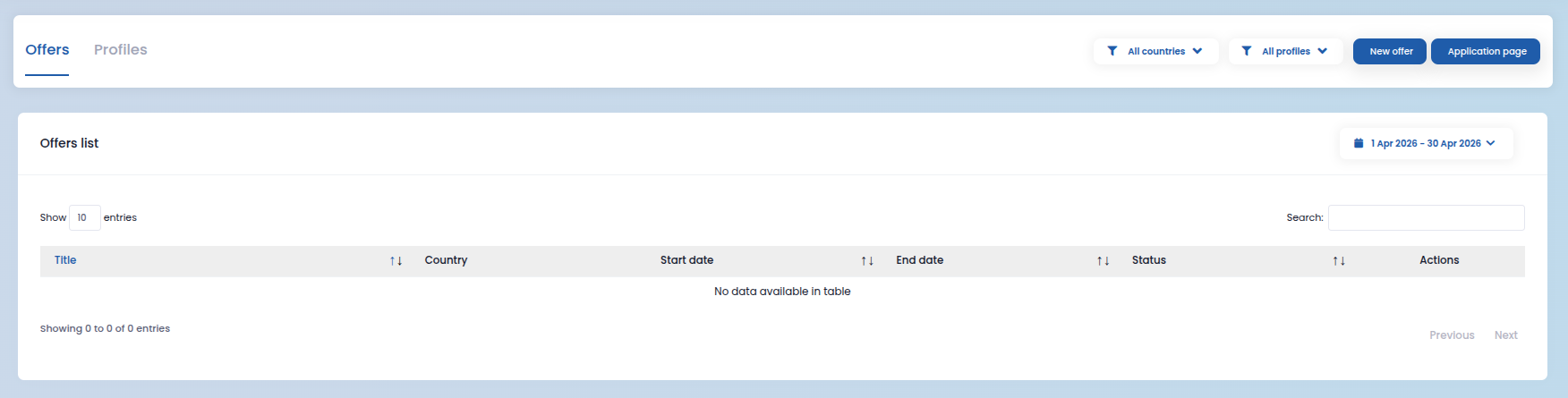
- manage your CV database.
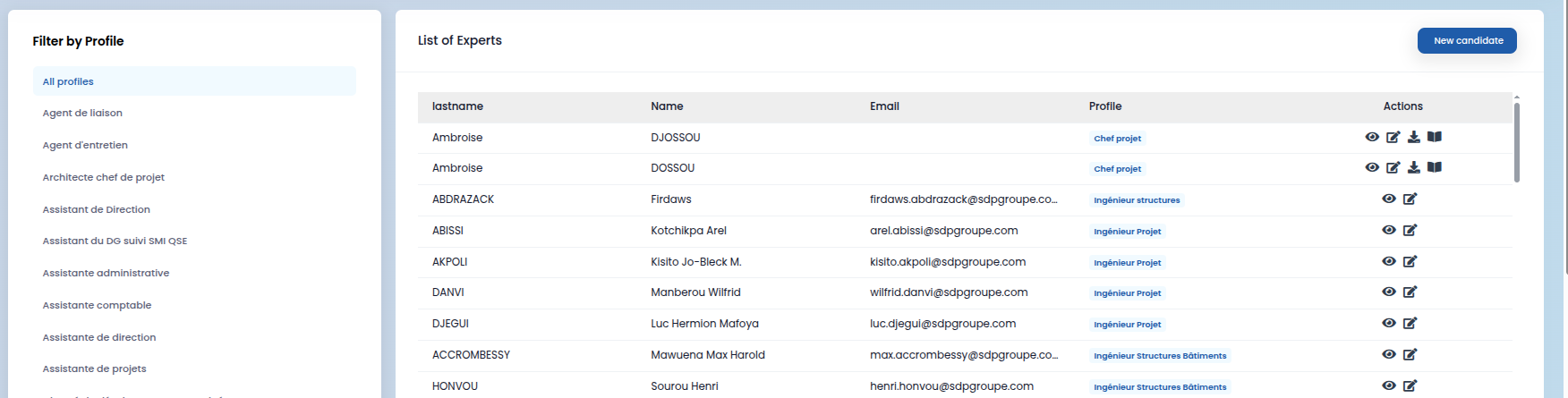
To add a new job offer:
-
click on "New candidate",
-
fill in the form,
-
then save.